Your eSIM QR code is on the phone you need to scan it with
October 26, 2026
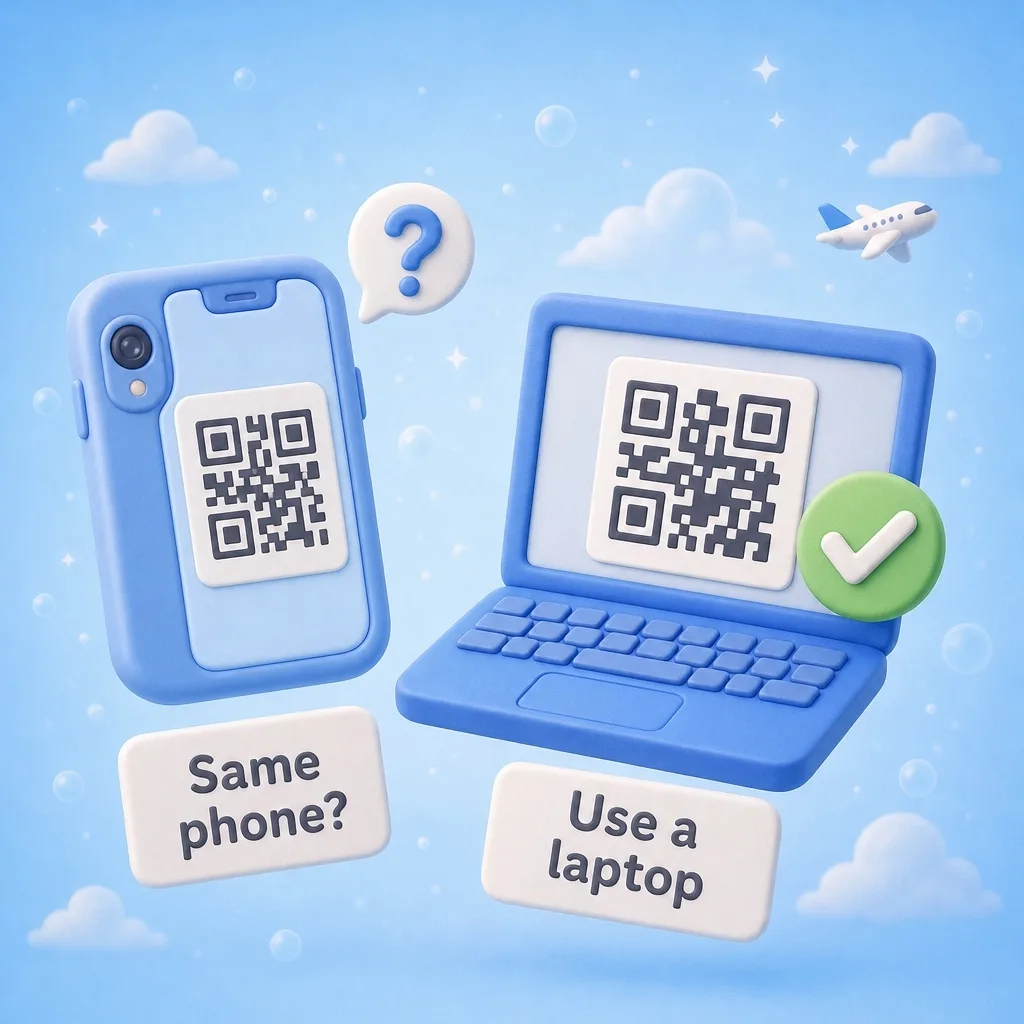
Your eSIM arrives as a QR code in an email. Most people open that email on their phone, go to add the eSIM, and then realize the camera they need is on the same phone that's showing the code. There's nothing to point it at.
This happens a lot. It's easy to get around.
Option 1: Show the code on another screen
Open the email on a laptop, a tablet, or someone else's phone. Then scan from your own phone.
On iPhone: Settings > Cellular > Add eSIM > Use QR Code, then point the camera at the other screen.
On Android: Settings > Connections > SIM card manager > Add eSIM on Samsung. Other brands word it a little differently, but it's in the SIM or mobile network settings. Choose to scan a QR code.
If you don't have a second screen nearby, print the email. A paper QR code scans fine.
Option 2: Type the code in yourself
You don't need the camera at all. Our order email includes the activation code as text, under the QR image. It looks like this:
LPA:1$smdp.example.com$ABC123XYZ
That one line holds two pieces:
- SM-DP+ address: the part between the first
$and the second$(here,smdp.example.com) - Activation code: everything after the second
$(here,ABC123XYZ)
On iPhone: Settings > Cellular > Add eSIM > Use QR Code > Enter Details Manually. Paste the SM-DP+ address and the activation code into their fields. Leave the confirmation code empty unless your email gives you one.
On Android, start the same way you would to scan, and look for a link like "Enter activation code" or "Need help?" under the camera view. Some phones take the whole LPA:1$... line in one field. Others ask for the two parts separately, like the iPhone does.
Copy and paste instead of typing if you can. A single wrong character and the install fails.
A few things that save you trouble
Install at home, on Wi-Fi. Adding the eSIM downloads a profile over the internet, so do it before you leave, not at the gate with one bar of airport Wi-Fi.
Scan it once. The code is single-use. Once it has been installed, it won't install again on the same phone or a different one. If the first try looked like it failed, check Settings > Cellular (iPhone) or your SIM manager (Android) before you scan again. It may already be there.
Don't delete it to "try again." Removing an installed eSIM doesn't give you a fresh code, and in most cases a deleted eSIM can't be installed again. If something looks wrong, email us with your order number before you delete anything.
Give it a name. When the phone asks for a label, call it "Travel" or the country name. When you land and need to switch your data line, you'll know which one it is.
When you land
Turn on the eSIM line and set it as your data line. Leave your home line on if you want to keep getting texts on your usual number. If the eSIM line shows no data, check that data roaming is turned on for that line. The eSIM is roaming on a partner network, so it needs roaming on to work.
The full step-by-step, with screenshots of where each setting lives, is in our installation guide.